Retro Polaroid Coloring on your Photo

This is a simple tutorial on how to get the retro polaroid coloring on your digital photo. This coloring effect will definitely goes well with these polaroid brushes. I can't guarantee that this is the polaroid effect you're looking for, but if you have Photoshop, it's worth a try. Of course another option will be, to buy a real polaroid camera. That will cost you some money. I included a PSD file for this tutorial just because I feel like doing something nice today. The weather is bright and sunny outside..it tends to make me feel good inside.

Download: Polaroid Coloring PSD File
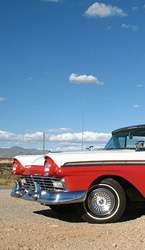
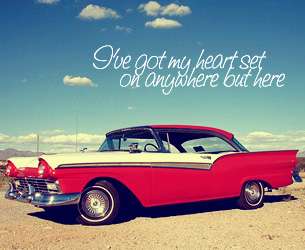


Polaroid Coloring in Photoshop


1. Open your image in Photoshop. Duplicate it once. Select the duplicate image on your layer palette and set the blending mode to Soft Light.


3. Now, go to Layer > New Fill Layer > Solid Color. Choose a really dark blue. I use #070142. Set this Fill Layer to Exclusion.


4. Then, go to Layer > New Adjustment Layer > Levels. Slide the black slider to the right a little bit to increase the intensity of the coloring.


You can stop here if you already got the result you want. Or continue with the rest of the tutorial to see if you can get something a little bit more awesome.

5. Add another Color Fill layer. Go to Layer > New Fill Layer > Solid Color. Choose a light orange. I use #de9b82. Set this Color Fill Layer to Soft Light with opacity of 75%.


Again, you can choose to stop here.

6. But if you decide to continue, go to Layer > New Fill Layer > Solid Color. Choose a light pink. The color code I use is fed1eb. Then, set this Fill Layer to Soft Light with 50% opacity.


You've got a nice polaroid effect already? If your answer is yes, then you can stop here. Otherwise, let's continue to see if you can get a much better polaroid effect.

7. Add another Color Fill Layer. Go to Layer > New Fill Layer > Solid Color. Select a dark blue. I use #070044. Set this Color Fill Layer to Exclusion, opacity 100%.

8. Duplicate your original image. And bring this duplicate layer on top of all the layers. Set it to Soft Light.


RELATED POSTS:
Retro Gradient Coloring Effect - PSDs Download
Cross-Processing Retro Photo - Action Download
READ MORE...

Cool Halftone Pattern Effect on your Photo

You've seen this halftone effect everywhere. In the magazines, music posters, billboards, album covers and don't you think now it's about time for you to learn how to do this halftone effect on your own. With effect this cool, you might think, it's gonna be a tedious task. But, believe me, with Photoshop, it's very simple and easy. Take a look at this before and after image. If this is good enough, then go on and read the rest of the tutorial.


Halftone Pattern Effect


1. Like any other tutorials, we begin by opening the image we want to use in Photoshop. It's important to choose an image with all white background. If you don't have one, delete the colorful and distracting background out of the way, then emerge your image to a white layer.

You can remove the background using Pen tool or extract filter.

Remove background with Pen Tool
Remove Background with Extract Filter

2. Duplicate the image twice. If you don't know how to do this, just google 'How to duplicate layer in Photoshop'. I'm sure there'll be plenty of answer.

3. Here's your layer palette now.


Layer 1 --> leave it alone, in case you accidentally make any mistake later, you'll still have the original image. We'll work with 'copy 1' and 'copy 2'.

4. In your layer palette, click once on 'copy 2' layer to select it. Then, go to Image > Adjustment > Desaturate.

5. Still working with 'copy 2' layer, go to Filter > Blur > Gaussian Blur. A small Gaussian Blur window will appear, set the radius to 25. And here's what you have now.


6. Next, go to Filter > Pixellate > Color Halftone. Use the following settings:


7. Then, go to Layer > New Fill Layer > Gradient. Choose the color gradient you want. I choose the one below..


8. Set the Gadient Fill 1 layer mode to Screen.


9. Move the 'copy 1' layer above 'copy 2' layer.


Here's your layer palette now.


10. So, where's those halftone dots now? Well, of course it's hidden underneath the 'copy 1' layer. To make it visible, I'm gonna delete/erase the background of our image. Since my background is all white, a simple way to erase it is to use the Magic Wand Tool. Select this tool from your toolbox or just click W. Then, just click on the white background area on your image to make a selection. And hit the delete key to get rid of the background.Do this several times until you've erase all the white areas.


11. To make the halftone effect more dramatic, I will reduce the size of the image (copy 1 layer) to 90%. The drag and position it slightly above and to the right of the document.


12. And crop out the area you don't want. Here's the final result:


READ MORE...
40+ Brilliant Anti-Smoking Ad Campaigns

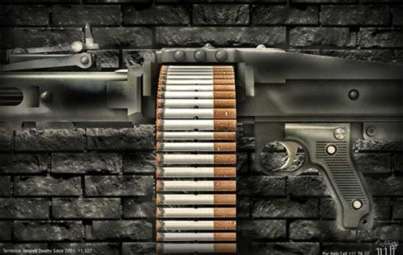
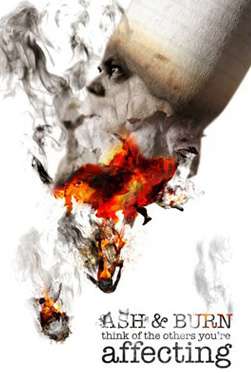
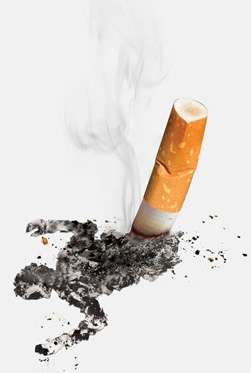
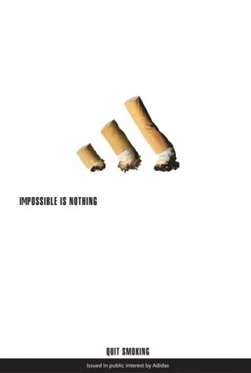
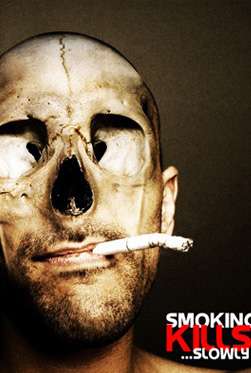
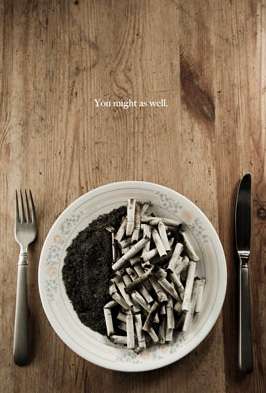
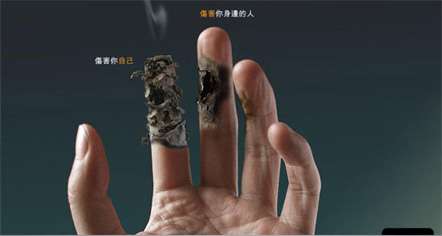
What it takes to create a subtle yet brilliant anti-smoking advertisement that captures the mind and heart of the people? Well, maybe inspiration, creativity, idea that rocks, a little bit sense of humor won't hurt, and of course..a good photoshop skill. Almost all the ads below relies on excellent photography and brilliant editing in Photoshop. If these anti-smoking ads can get you to quit smoking..then, it's good. If not, at least you got some inspiration out of it.

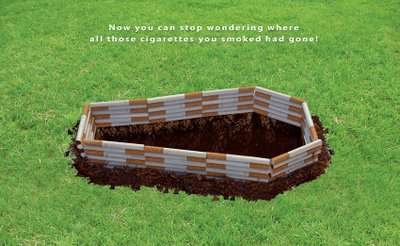
Now you can stop wondering where all those cigarettes you smoked had gone!


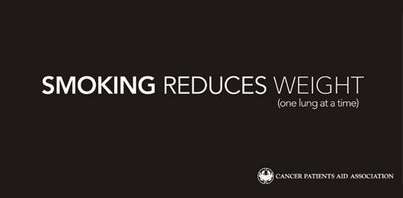
Smoking reduces weight..(one lung at a time)


Are you a smoker? This is the amount of tar in your lungs after 2 years


Smoking could destroy those happy lives.


Smoking burns your hard-earned money


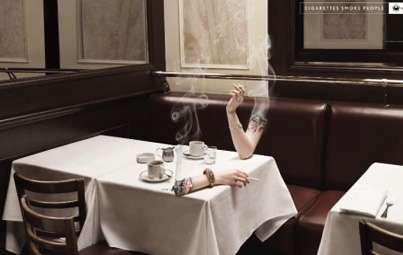
Cigarettes smoke you


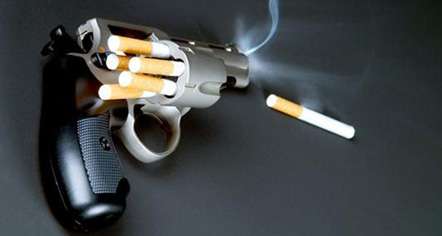
Smoking Kills


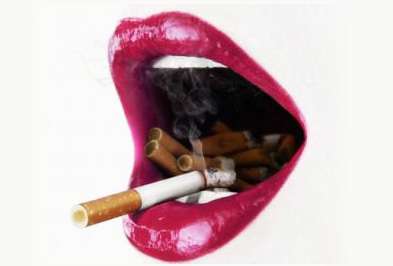
Kiss your ash


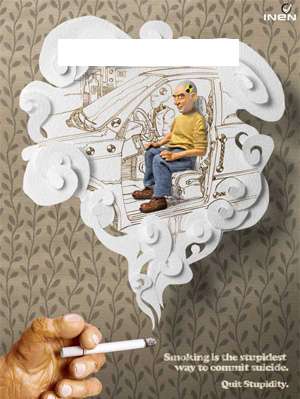
Smoking is the stupidest way to commit suicide. Quit Stupidity


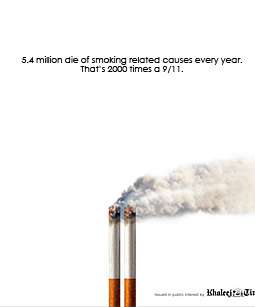
5.4 million die of smoking related causes every year. That's 2000 times a 9/11


Non-smoking area


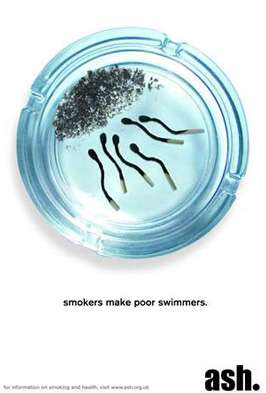
Smokers make poor swimmers


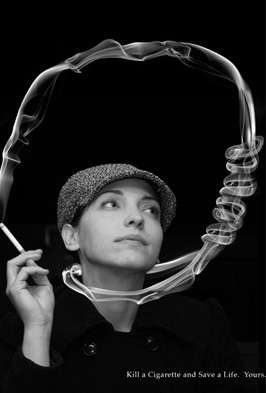
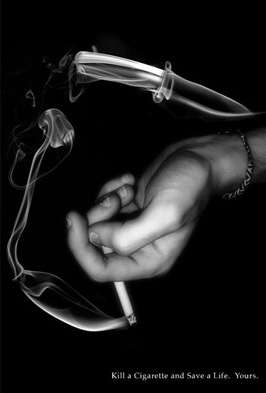
Kill a cigarette and save a life. Your.


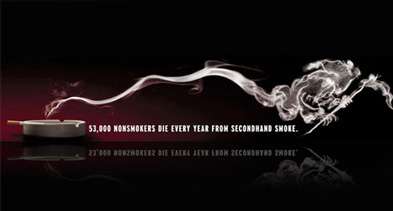
53,000 nonsmokers sie every year from secondhand smoke


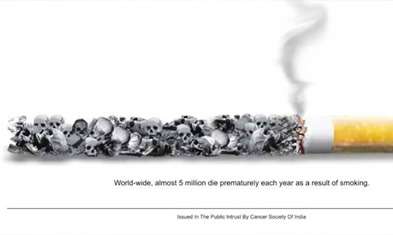
Worls-wide, almost 5 million die prematurely each year as a result of smoking.


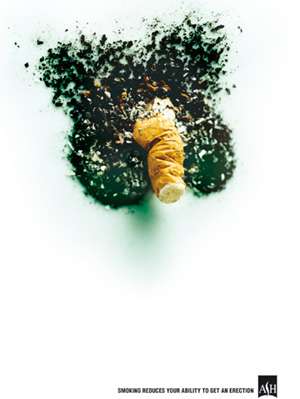
Smoking reduces your ability to get an erection


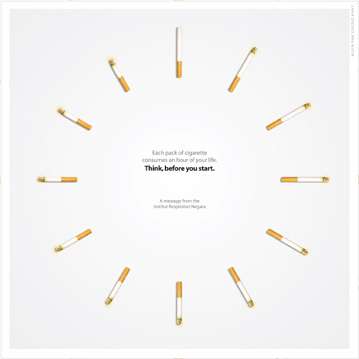
Each pack of cigarette consumes an hour of your life. Think, before you start


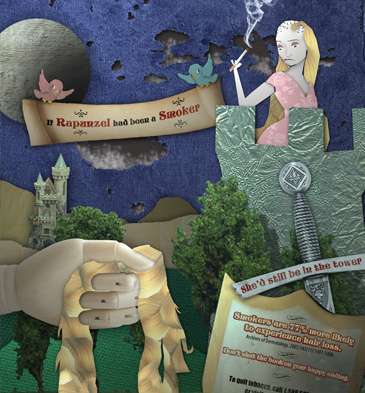
If Rapunzel had been a smoker, she'd still be in the tower.
Smokers 77% more likely to experience hair loss.


If Sleeping Beauty had been a smoker, she'd still be asleep.
Smoking causes bad breath.


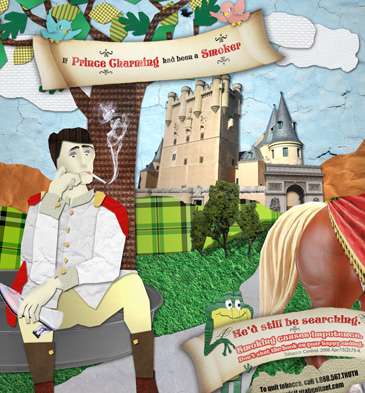
If Price Charming had been a smoker, he'd still be searching.
Smoking causes impotence.

READ MORE...