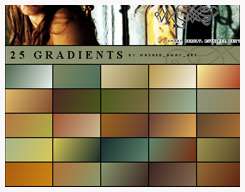
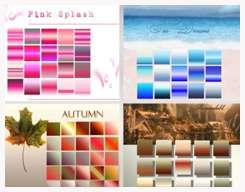
Download Free Photoshop Gradients

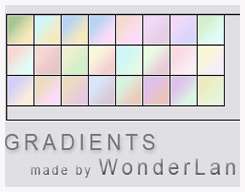
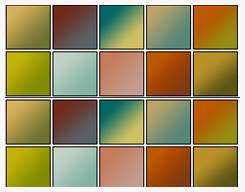
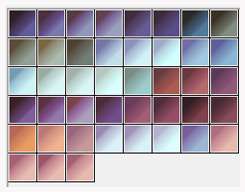
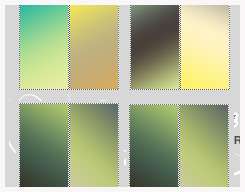
This is our compilation of 20 Photoshop Gradient sets that you can download for free. Some of the gradient sets contain more than 50 gradients (and some less). We're gonna take a safe bet here and let's say each set has an average of 25 gradients. With this assumption, you have 500 gradients to download. And that is a lot of option for you. In most cases, you'll be downloading a .GRD file for the gradient set. How to load and open this gradient in Photoshop? Place the .grd files into: Program Files\Adobe\Adobe Photoshop X\Presets\Gradients where X is your version of your Photoshop. For Mac users, move the .grd file to the application folder. Next, continue with the following steps:

1. Open Photoshop, select gradient tool in the toolbar.
2. On the gradient palette, click the small arrow on top right corner to load more gradient.
3. Browse to your saved .grd file and click ok.
4. The new gradient will be listed in your gradient palette now.

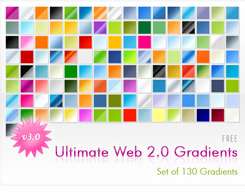
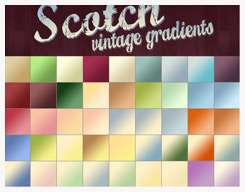
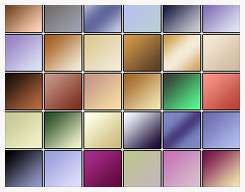
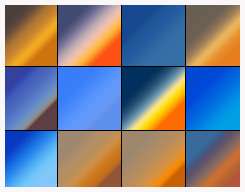
Ultimate Web 2.0 Gradients @ www.dezinerfolio.com Vintage Gradients by artik-nl @ deviantart

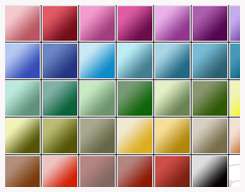
Monochromatic Gradients by purple-graphics @ deviantart Nature's Beauty Gradients by liasmani @ deviantart


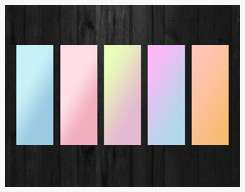
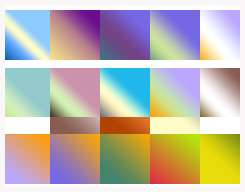
Pastel Gradient by shattereddesigns07 @ deviantart Gradient by sirensebastianne @ deviantart

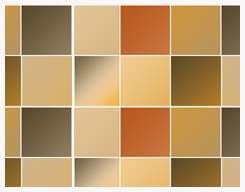
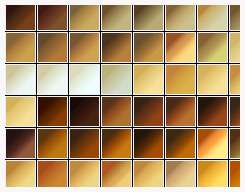
20 Soft Orange Gradient by kumquatslair @ deviantart 51 Gradient Varities by liasmani @ deviantart

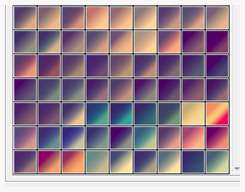
Gradient Set by foxxie-chan @ deviantart Retroactive Gradients by magdalena-stock @ deviantart

43 Gradient Varities by magdalena-stock @ deviantart Underwater Gradients by millepetit @ deviantart

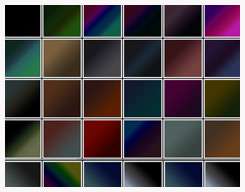
Real Sky Photoshop Gradients by feniksas4 @ deviantart Dark Photoshop Gradients by scully7491 @ deviantart

Gradient Set for Photoshop by s3vendays @ deviantart Gradient Set by fullmind79 @ deviantart

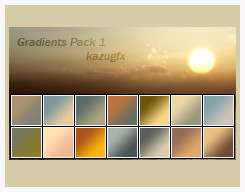
Photoshop Gradients by kazugfx @ deviantart Gradient Set by anolinde @ deviantart

Gradient Set by anolinde @ deviantart 75 Photoshop Gradients by elvensword @ deviantart

For more reading, check out our tutorial on How to use Gradient Map in Photoshop to get some amazing Photo effects

READ MORE...
Download Gradient Photo Effect PSD

What can you do with gradient? If your answer is nothing much, then you should think again. Gradient is such a simple tool in Photoshop, but once you've discovered the amazing photo effects you can get out of it, Photoshopping becomes much more fun. To learn more about gradient map in Photoshop, you can check out our previous tutorial on: Discovering Gradient Map in Photoshop. Today, we're posting some PSD files that you can download to get the coloring effects shown below. How to efficiently use this PSD? Well, first, open your image in Photoshop (Doesn't matter the size). Then open the downloaded PSD file in Photoshop. Drag the Gradient Map layer and drop it on top of your opened image.

Download the PSD individually by clicking on each preview image.

Or you can get them all in this zip file - Gradient Photo Effects

Gradient - Purple Mint Gradient - Fire Nation Gradient - Pink Diamond


Gradient - Purple Punch Gradient - Green Day Gradient - Ocean Avenue

Gradient - Lonely Soul Gradient - Retro Red Gradient - Mean Green

Gradient - Red Light Gradient - Violet Sky Gradient - Dark Nite

READ MORE...

Discovering Gradient Map in Photoshop

If you haven't figure out how to use Gradient Map in Photoshop yet, well it's about time for you to learn about it. This simple tool can give some of the amazing effects known to human being in terms of post-processing your photo. Yes, that's the kind of exaggeration I'm looking for, just to get y'all excited about it. It's million times easier than rocket science. So why not spend your precious 5 minutes on this tutorial, and it'll sure transcend you to a better place, wherever that is. Below are some preview images. You can create your own effect as well by customizing the colors of your gradient.

*Don't forget to visit our blog next week. We will post some wonderful gradient effect PSD files for you to download. Update: Download the Gradient Effect PSD here

Gradient Map Sample 1 Photo FX with Gradient Map in Photoshop Gradient Map Tool Sample 3


1. Open your image in Photoshop

2. Go to Layer > New Adjustment Layer > Gradient Map. A small window like below will pop up. Just click OK.


Then, you'll see a Gradient Map window. Choose one of the preset gradient you have. Look at your preview image to see which one suits your photo. After that, click OK.


3. You can also try changing the blending mode of the Gradient Map layer to get different effect on your image. See the picture below for guidance.


And below is two effects we got from the same color gradient by changing the blending mode of the Gradient Map layer.


4. Now, we're gonna show you how you can customize the color of your gradient to get the effect you want. Double click on the Gradient Map thumbnail on your layer palette to edit the gradient.


5. A gradient map window will appear. You can select another gradient from the available selections and click OK.


6. Or as an alternative, you can create your own gradient. Here's how you can customize the color of the gradient.

Click on the gradient color (as shown in by the image below) to bring up the Gradient Editor window.


7. On the Gradient Editor window, click on each color stop to change the color (see image below). A color picker window will open. Choose your color and click OK.


You can add more color stops by dragging your mouse near one of the color stop. You can delete a color stop by clicking on that color stop and hit the DELETE button at the bottom right.

Once you've got all the colors adjusted. Hit OK on all the pop up windows to return to your image. Now that you've learn a thing or two about gradient map, how about trying the some photo effects with our retro gradient map psd.

READ MORE...