Image Coloring PSD Compilation

For quite a while, I've been meaning to write this wrap up post that compiles all the available PSD files that you can download from this blog. I'll keep updating this post (depending on my schedule) to reflect the latest uploaded PSDs. If you love experimenting with coloring effect on your photo, then by all means, please bookmark this page or you're always welcomed to follow this blog, subscribe through RSS or email. Sure you can read tutorials on how to achieve each of these coloring, but having a PSD file is much more easier and can save your precious time as well. All these PSD files are free for you to enjoy. So, let's spread this post and start having fun.

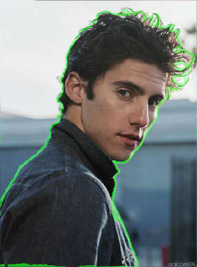
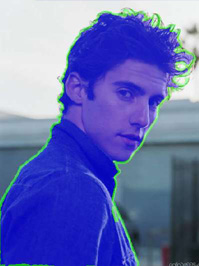
Retro Coloring Using Gradient Soft Pink Coloring Effect Soft Color PSD

Faded Spring Coloring PSD Summer Sunshine PSD Caramel Coffee PSD


Image Coloring PSD Icon Coloring Dark Chocolate PSD

5 Basic Photo Coloring Effect Classic Color PSD Cross-Processing Image in Photoshop

PSD Download: Dream Big Vol 2 Gradient Photo Coloring Mosaic Photo Effect

Polaroid Coloring Pop Art Effect Popping Color PSD

READ MORE...

Create A Photo From Text in Photoshop

This tutorial will show you how to create a photo made of words or random letters of the alphabet. It's a very simple effect to achieve on your image and don't be intimidated if you just started using Photoshop. We're just using basic tools here and I've tried to be as precise as possible in explaining each step. But if you still have any doubt, feel free to leave a comment. You can see the result shown in the preview images below. Basically, all three images are created using the same concept taught in this tutorial. You just have to get creative and play with different settings of the text, background color (black or white is an ideal color) or you can even add a texture as background.

Photo Made Out of Text: Preview 1
Photo Made Out of Text: Preview 2
Photo Made Out of Text: Preview 3
Create a Photo Made Out of Text


1. Open your image in Photoshop. Duplicate your layer.

2. Go to Layer > New Fill Layer > Solid Color. Choose white or whatever color you want. This layer will be your background.

3. Copy your source text. It can be from a song, article, story or you can always type in your own words. Select the Type Tool (T). Click and drag your cursor diagonally on your image to form a dashed box. We are going to fill in the area inside this box with text. So, it's good to make the box slightly bigger than your canvas size just to make sure all area of your image is covered with text.


Paste your text on the canvas. You can see it has covered all your image area. If your image is big and your font size is small, you're gonna need lots and lots of words.


4. Looking at the current text, you can adjust the font type and font size to whatever looks good for you. I chose the font called Teen Light and set the size to 9 pt.


5. Now, re-arrange your layer palette so it's look like below. Your original image at the bottom, followed by the Color Fill Layer, then your duplicate image layer and on top is your Text Layer.


6. Place your cursor on the text layer, then press CTRL + left mouse click to select the text area.


7. You'll see on your canvas that the selection has been made on the text. Now, select the Rectangular Marquee Tool (M). Put your cursor on your image until you see a small dashed-box icon. Then, right click and choose 'Select Inverse'. What we're doing here is selecting the area outside of the Text.

8. Go to your layer palette and click once on the duplicate image layer to choose that layer. Next, hit the DELETE key on your keyboard. Click CTRL + D to turn off the selection. Now, we have eliminated the part of our image not covered in text.


9. To see our remaining image, put the text layer to invisible mode.


10. You can duplicate your image a few times to get darker effect. I duplicate it twice as you can see from my layer palette below. And my final outcome as shown in our first preview above.


*If you want effect like our second preview, start with an image with white background. Choose bigger font size (and perhaps a different font).

*If you want image like our third preview, in step 3 and 4, instead of covering your whole canvas with text, just type the words or sentence you want to be seen on the canvas. Of course choose much much bigger font size.

READ MORE...

Halftone Wave Photo Effect

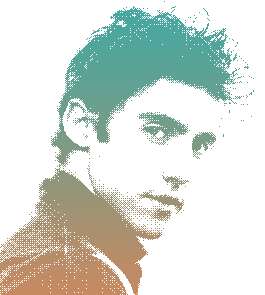
I am actually pretty excited to show you this effect. I'm calling it the Halftone Wave Photo Effect. I think it is really cool and will work very well on a poster or flyer. I imagine in my head, it would be like a rock concert flyer, some cool party invitation..or something like that. But this effect can be used beyond my imagination. You are all smart people and I'm sure you can figure out the right place and time to use this cool halftone effect. This tutorial is meant to introduce you to the Bitmap mode in Photoshop. You can use this knowledge to create some other beautiful effect. Keep experimenting.


Halftone Wave Photo Effect


1. Open your image in Photoshop. Duplicate your image. We're gonna work with the duplicate image and leave the original image untouched. Perhaps, we can set the original image layer to invisible.


2. Next, we're going to remove the background of the image and replace it with a clean white background. If you already have a white background or just decide to apply this effect to your whole image, you can skip step 2a-2f.

There are several ways to remove the background. But today, I'm going to use the Extract Filter. Now, you can learn more detail about this method in my other post on How to Remove Background with The Extract Filter. Or you can save that for later reading and just follow step 2a-2f below.

2a. Go to Filter > Extract. The Extract Window will open. Choose the Highlighter Tool on the top left. Set the brush size to around 20 and select Smart Highlighting.


2b. Trace around the edge of your subject and close the path. Don't worry too much about precision when you're tracing the hair area (or any other area for that matter). Trust me, in this photo effect, the messier, the better.


2c. Now select the Fill Tool. Click on the subject (inside the traced area) to fill the area with sort of purple color. This purple area will be retained while the background will be deleted. Press the OK button.


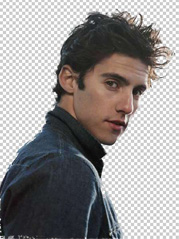
2d. Below is your result. We have successfully removed the background from the image.


2e. Open a new file in Photoshop. Perhaps the canvas size should be slightly bigger than your image in 2d. Set the Background to White.


2f. Drag the image you have extracted in step 2d onto the new canvas. Below will be your image (with white background) and your layer palette.


3. With your image layer selected on the layer palette, go to Image > Adjustment > Desaturate.


4. Then, go to Image > Adjustment > Levels. Drag the black slider to the right, and the white slider to the left until you got something like below image.


5. Then, go to Image > Mode > Grayscale. If asked whether to Flatten your image, just click Flatten.

6. Now, go to Image > Mode > Bitmap. Use the default setting as your resolution and set the method to halftone Screen. Click OK.


7. The Halftone window will open. The frequency setting actually depends on your image size and what kind of final effect you want on your image. You can experiment with several frequency and shape settings until you get the look you want for your image. My image size is 4x5 inches and I set the frequency to 53 lines/inch. Set the angle to 0 and Shape to Line.


8. Below is the halftone effect I got.


Now, we going to add some colors to our image. Convert the image mode to grayscale. Go to Image > Mode > Grayscale. And to work with color, convert it to RGB mode. Go to Image > Mode > RGB Color. They are many ways you can add color to your image. First is using Gradient Fill Layer as shown in step 9.

9. Next, go to Layer > New Fill Layer > Gradient. I select one of the gradients I have installed in my computer and click OK. For more gradient option you can download some from our Gradient Collection. After you're done selecting the gradient, set the blending mode of the gradient fill to Screen.


And below is your final image.


10. Another way to decorate your image is to add some colorful textures on top of your image layer and set the blending mode to Darken or Multiply like what I've done on my initial preview result. Adjust the opacity if necessary. Try some of our Colorful Abstract Texture Collection.


READ MORE...