Download psd file for this tutorial: Classic Coloring PSD
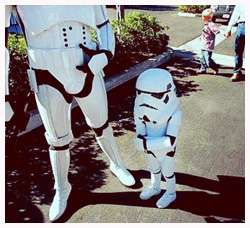
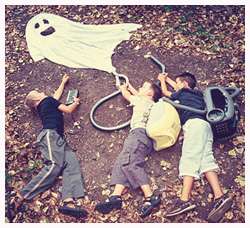
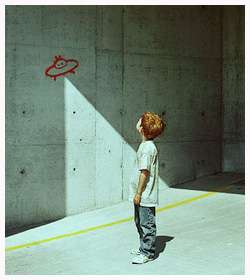
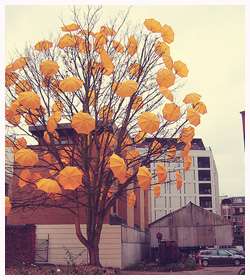
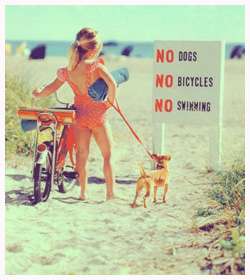
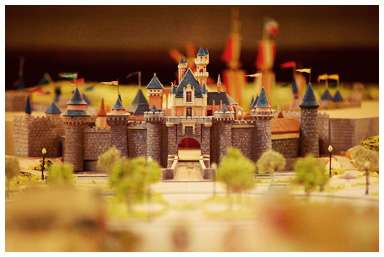
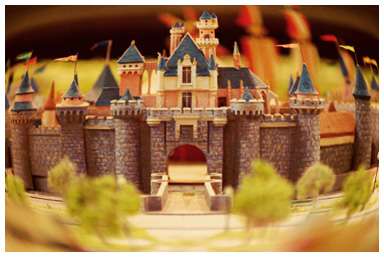
Classic Coloring Effect - Before and After Image
1. Open your image in Photoshop. Duplicate the image and go to Image > Adjustment > Desaturate to get a black and white image. Set the duplicate image to Screen.

2. Then, go to Layer > New Adjustment Layer > Brightness and Contrast. Use the settings below. Or later, you can always go back and change the setting, depending on what look best for your image.

3. Set the Brightness/Contrast layer to Multiply.

4. Now, we're gonna add that brownish tint to our photo just to give it a little classic look. Go to Layer > New Fill Layer > Solid Color. Type the color #020921 in the box shown below and click OK.

5. Set the Color Fill Layer to Exclusion and adjust the opacity accordingly. Mine is set to 65%. And we're done!

READ MORE...