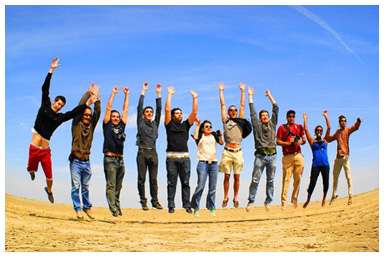
Classic Coloring Effect on Your Photo

Ever look into a fashion magazine and wonder how they got that classic coloring look on the model? Well, this tutorial can show you how. It might not be the most accurate answer, but it'll give you an idea on where to start. This is a simple 5-step tutorial because we all need a little simplicity sometimes, when we live in the world where things are getting more and more complicated. Start with a good image and you'll get a nice effect. PSD file included.

Download psd file for this tutorial: Classic Coloring PSD


Classic Coloring Effect - Before and After Image


1. Open your image in Photoshop. Duplicate the image and go to Image > Adjustment > Desaturate to get a black and white image. Set the duplicate image to Screen.


2. Then, go to Layer > New Adjustment Layer > Brightness and Contrast. Use the settings below. Or later, you can always go back and change the setting, depending on what look best for your image.


3. Set the Brightness/Contrast layer to Multiply.


4. Now, we're gonna add that brownish tint to our photo just to give it a little classic look. Go to Layer > New Fill Layer > Solid Color. Type the color #020921 in the box shown below and click OK.


5. Set the Color Fill Layer to Exclusion and adjust the opacity accordingly. Mine is set to 65%. And we're done!


READ MORE...

All the Fabulous Fonts Collection

I love fonts. There's no doubt about it. When it comes to fonts, I have come to believe that the more I have, the happier I am. If you lead your life with the same philosophy as mine, then this page will definitely (maybe) be a bookmark for you. We're compiling all kinds of fonts here. Script, handwriting, grunge, romantic, curvy, cute and scary fonts. You name it. If it's not here now, then it will be here in the future. You never ask, but I'm gonna tell you this anyway..my favorite font genre is handwriting fonts. Because it just prove how each and everyone of us is unique in our own way. Some claimed that you can predict personality from one's handwriting, others just think it's a total crap. Whatever it is, if someone ever mock your handwriting, just tell them it's your original font.


20 Lovely ROmantic Fonts 60 Handwritng Fonts Collection 100 Fonts for Icons and Avatars


50 Coolest Grunge Fonts on the Planet Script Fonts Collection Fabulous Fonts in Capslock

READ MORE...
Ideas that Brighten Up Your Day

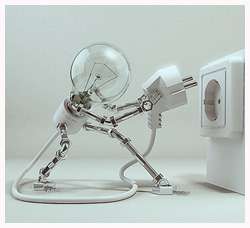
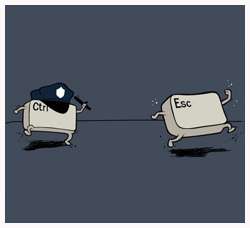
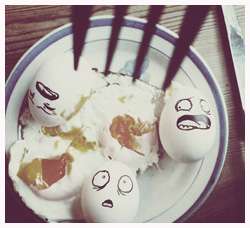
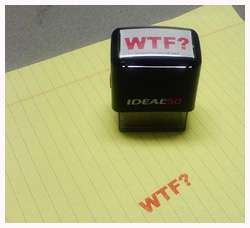
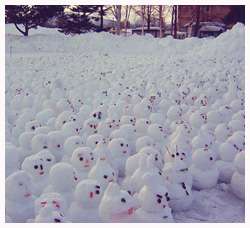
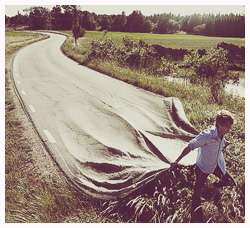
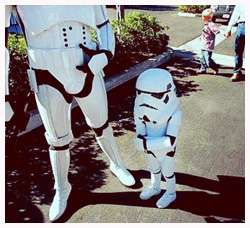
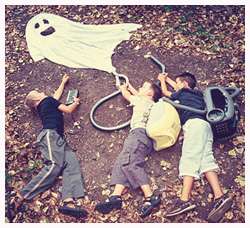
These photos are meant to give you some inspiration, make you laugh or at least smile. Some photos are real and some are creatively manipulated in Photoshop. You may have realized by now that everything is possible with the right dosage of imagination. Careful though, too much of it and you'll become schizophrenic. Some images are rightfully credited to the original creator. However, due to my lack of modern spy technology, I was not able to track all the owners. My sincere apology. If one of these images belong to you, a friend or a neighbor, do let me know and I'd be more than happy to put the credit. Hover your mouse on the picture to give you a sense of what's going on in each picture.

Doremi..Quack by Jon Barthell Self-Illumination by kutsche @ deviantart

Fugitive by Kaloyster Trembled Egg

Just another way to dissaprove - WTF by passiveaggressive @ flickr All the Words Turned to Dust

Falling Ducks When Life Gives You Snow, Make Snowmen

Build Your Own Path by xorsyst @ flickr Bring-Your-Dad-to-School Day

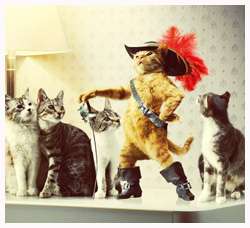
Ghostbusters Puss in Boots by Carioca (Romania)

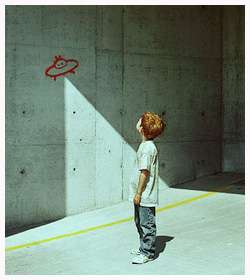
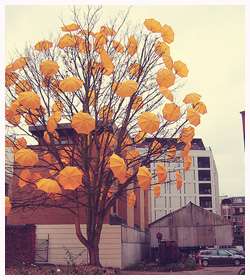
Alien Abduction by 8533150@N04 @ flickr It's Fall Again by Jessica Rolland @ flickr

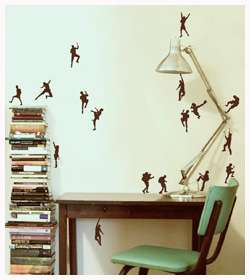
Ninja Attack by Elly Nelly Summer Sucks!

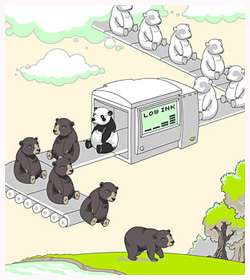
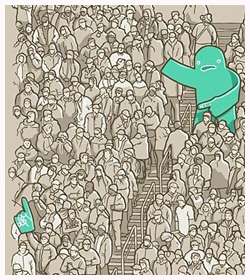
Low Ink Foam Monster Emotional Reunion with Severed Limb by Aled Lewis

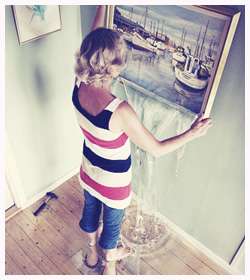
A Painting Too Real by alltelleringet @ deviantart House for Sale

READ MORE...

Creating Fisheye Effect in Photoshop

Just gonna post a short and simple tutorial on how to get the fisheye effect in Photoshop. This has to be the cheapest way to get this effect on your photo (if you already owned Photoshop). Rather than buying that expensive fisheye lense or buy one of those compact cameras that has the function to automatically apply this effect on your photo. Since they're making lenses just for the purpose of giving this effect, I can concluded that this must be an important effect to some people out there. So, read and follow this tutorial if you're one of them.

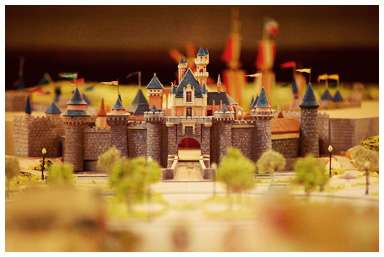
Original photo by elvire-r @ flickr

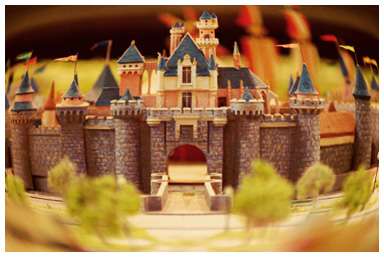
Fisheye effect in Photoshop


1. Open your image in Photoshop.

2. Duplicate the image.

3. Click on the new duplicate image in your layer palette to make sure you will be applying this effect on this layer.

4. Go to Edit > Transform > Warp. At the top of the menu, you'll see a drop down box that says "Custom". Click on Custom, and select Fisheye.


5. Adjust how intense you want the effect to be by dragging the small square on your image up or down. And you're done!


With the right image, this effect can really create a kick-ass photo. So, use your imagination. I'm sure most of you are a lot more creative than me. Okay, let me give one more example before signing off.

Original photo by andycastro @ flickr

Fisheye Effect

READ MORE...