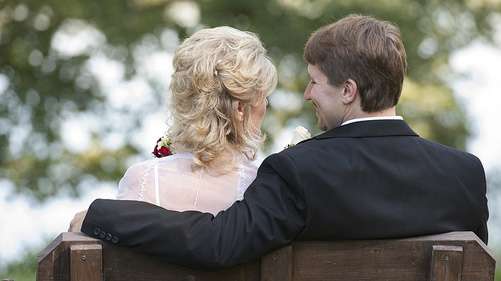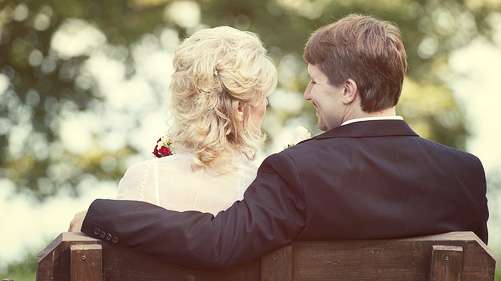
Dotted and Pixelated Photo in Photoshop

Let's try something new today (if you haven't tried this before). I'm going to call this photo effect, dotted pixelated pattern on your image. This might not be the right term (coz I don't really go to Photoshop school), but I hope you'll figure out right away what I'm talking about after looking at the preview picture below. This neat effect is fairly easy to achieve. And if you're up for a challenge later, maybe you can try our Retro Halftone Tutorial.


1. We always start with opening our image in Photoshop.


2. Then, create a new document. Go to File > New. A small window will appear. Use the setting below.
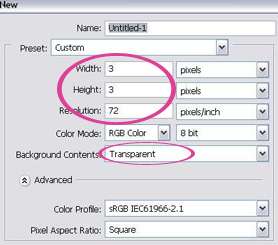


Now, you must be wondering why we're creating this tiny size document. We're actually gonna create a pattern of our own. This pattern is going to be the dotted pattern we'll use on our image. Don't worry if this is new to you. I'm gonna walk you through this. Just take a deep breath.

3. Remember the tiny document you created just now. Zoom in until 1600%. I normally just use the keyboard shortcut to zoom in. CTRL++ several times until you reach 1600%. Here's your document now.


4. Now make sure your foreground color is white. If for some reason it's not, change it to white.


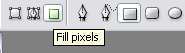
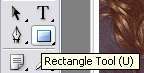
5. Next, select the Rectangle Tool on your ToolBox. Then, on the top menu, select Fill Pixels.


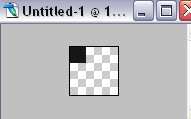
6. Carefully and delicately, draw a small square as shown below. The canvas size is 6x6. You need to draw a square on the top left with size 2x2. (For the sake of making this more clear to you, I gonna use the black color to show the square I had made with the Rectangle Tool. Your square should be white though.)


7. Go to Edit > Define Pattern. A small window will appear. Choose a suitable name for your new pattern and click OK.

8. Now, go back to the image you opened in Step 1.


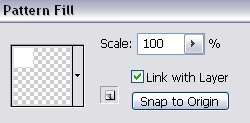
9. Go to Layer > New Fill Layer > Pattern. Select the Pattern we just created earlier.


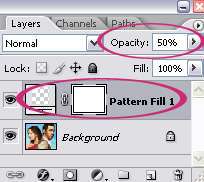
10. Below is our Layer Palette. Lower the opacity of the Pattern Fill to 50%.


And here's the final result.


Using the basic from this tutorial, you can try to create different pixelated patterns. You can explore with t-shaped pattern or a circle or diagonal pattern. Below is an image created using the diagonal pattern.


READ MORE...

How to Make Rounded Corners in Photoshop

Tired of regular pointed edges on your picture? Let's try something new today. I'll show you how to get the rounded corners on your image. It's so easy but maybe a large amount of the Earth population have not figure it out yet (or just don't care). This is just one of those fast tutorials I tend to write when I'm not in the mood to indulge myself in a complicated thought. Hope this will be useful to all of you awesome readers. We're going to achieve something like below.


1. Open the image that you intend to have rounded corners. I'm gonna use this cute little kitty image I found on the web. Isn't he the cutest thing! (Pardon me if you're not a cat person)


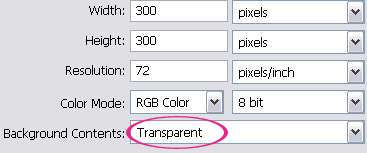
2. Then, open a blank document. Go to File > New. Choose your image size (probably the same as your image in Step 1 or bigger), set the resolution and everything. And remember to set the Background Contents to Transparent.


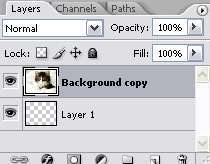
3. Next, drag the kitty image to the transparent blank document you created in Step 2. Here's your layer palette now. Make sure to select the Kitty layer coz we'll be working with it the whole time. Just ignore the transparent background layer. After all, it is transparent.


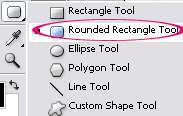
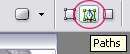
4. Select the Rounded Rectangle Tool from the Toolbox. Choose 'Path' on the top menu. And set the radius of your rectangle. In principle, the higher the radius, the rounder the corner. I choose 10 as my radius.


5. Now, select the area of image you want to maintain.


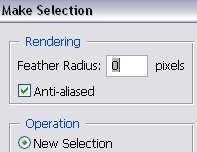
Right click and choose "Make Selection".


If a small window like below appear, just use the default settings shown below.


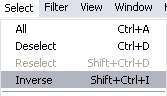
6. Now, go to Select > Inverse. By doing this, we're actually selecting the edge of our image.


Then hit the DELETE key on your keyboard.


To get rid of the distracting selection dashed lines, just press CTRL+DELETE on your keyboard.

7. And finally, a few tips about saving your rounded corners image:

A. You can save it as JPEG format. Go to File > Save for Web > Select JPEG on the drop down menu on the right. But, bear in mind that, JPEG doesn't support transparency. So, the transparent part of your image will become White like below.


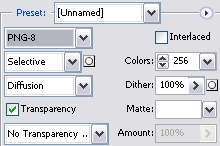
B. If you want the rounded corners to be visible when you upload your picture to the web, save it as PNG or GIF. Go to File > Save for Web > Select PNG (or altenatively, GIF)


Image saved as PNG format


Image saved as GIF format

READ MORE...

Image Coloring PSD : Dream Big Vol 2

Hey fellas! How's the new year treating you? Better than last year..I hope. Last week I wrote an exclusive (sort of) post about the launch of my DREAM BIG ACTION SET : VOL 2. If you're some kind of photographer and aim for a better picture, try it. It's free so you've got nothing to lose. And now I'm including some PSD files to accompany the Action Set. We don't want them to get lonely, do we? Before I forgot, here's some tips on How to Effectively Use the PSD Files.

Download PSD Files: Look for the link below each preview image

Download Action Set: DREAM BIG ACTION SET - Vol 2


Red Popping X-Process in Photoshop: Wildfire.psd


Retro Coloring Enhancement: RainbowsAndButterflies.psd


Enhance Portrait Color: Dynamite.psd


Sunshine Effect: ImagineYouAndMe.psd
READ MORE...

Cross Processing in Photoshop: Dream Big Actions Volume 2

Happy New Year! Some people start their new year with a new resolution. But I still have a few of unresolved resolutions from last year. So, I'm gonna kick off 2011 with a new blog post instead and just see how it goes from here. If you haven't check out part 1 of this post, you can find it HERE. More than 500 fans had downloaded the action set and I hope at least 90% of them are happy with the result. If you don't know what action is, maybe 2011 (who knows what's gonna happen in 2012) will be a great year to start learning about it HERE or some other place. Trust me, it'll only make your life easier. And without further ado, I'm launching part 2 of the action set. I hope you'll have some fun playing with it.

Download Action: DREAM BIG ACTIONS - VOLUME 2

Download PSD Files: DREAM BIG PSD - Vol 2

How to Use: Guidelines to Use our Photo Coloring Action


Original photo by jasonpier @ flickr

Dreamy coloring Photo
Soft and Dreamy Effect {Imagine You and Me}


Original photo by jetsetwilly @ flickr

Enhance Portrait Coloring
Lighten up your Portrait Coloring {Dynamite}


Original photo by martinlabar @ flickr

X-process in Photoshop
Pop the Red and Yellow in Your Photo {Wildfire}


Original photo by adwriter @ flickr

Image coloring Action
Retro Old Coloring in Your Photo {Rainbows and Butterflies}


Original photo by a4gpa @ flickr

Brownish Color Effect
Crystal Clear Brownish Effect {Coffee City}

I would love to see your result with this action. Leave a comment and share it with the rest of our friends here ;)

READ MORE...